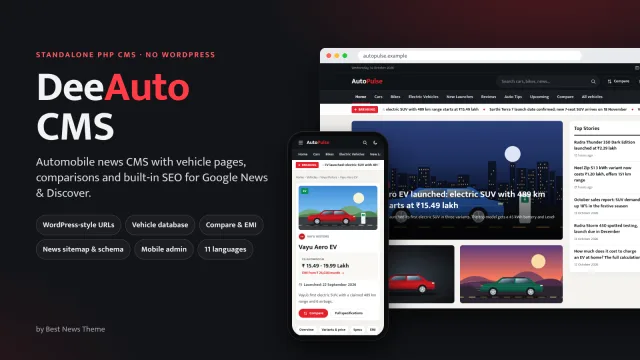
DeePress CMS - The fast news website CMS for Google News & Discover
₹3,499News & Magazine
+ 18% GSTBuy Now
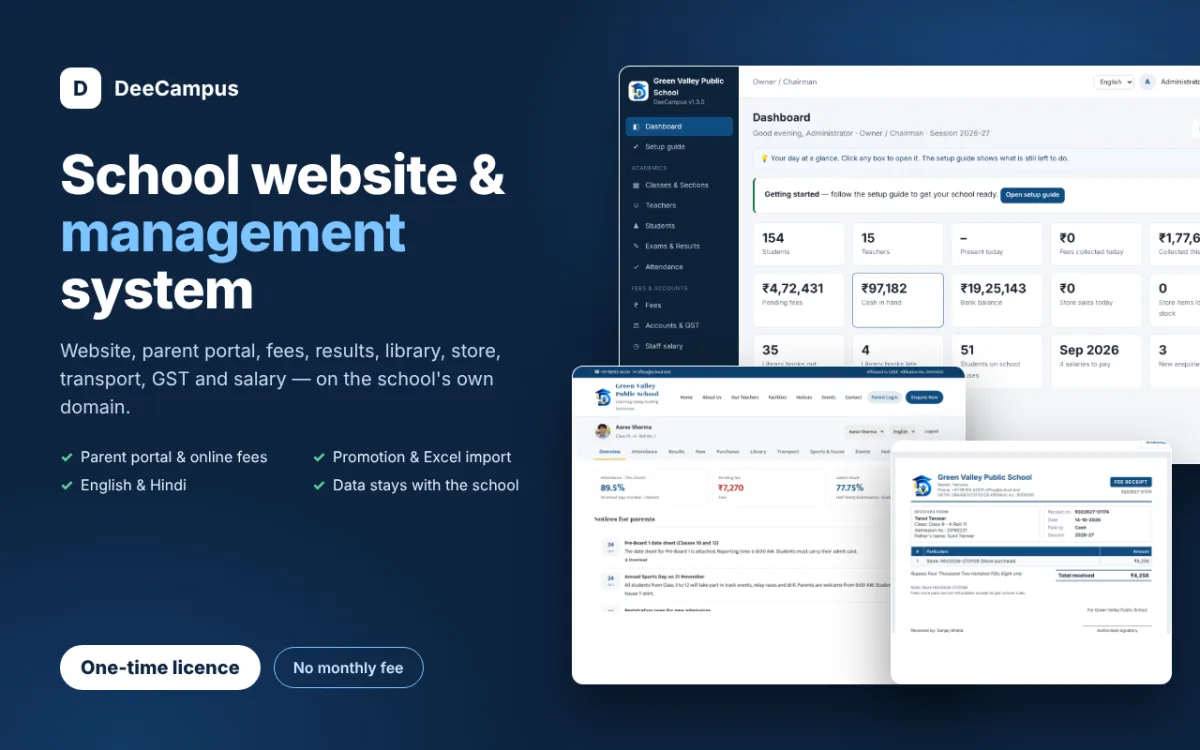
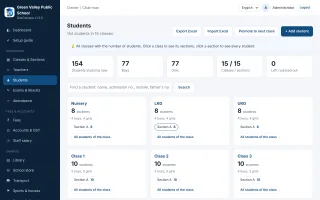
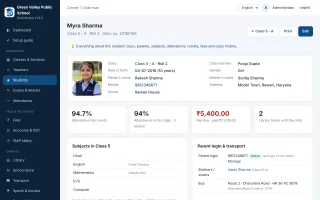
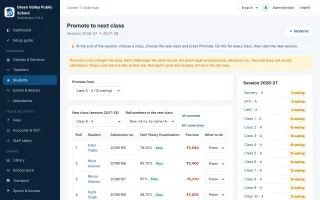
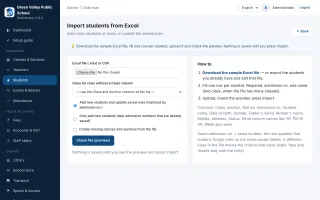
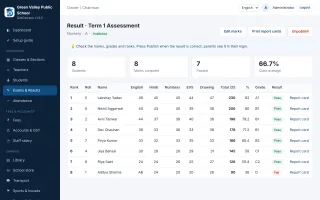
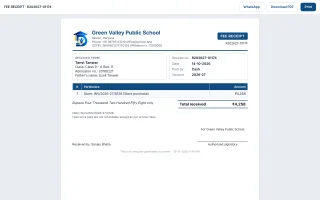
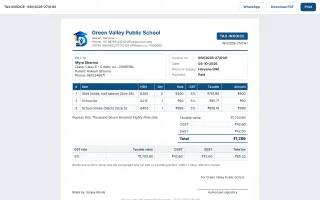
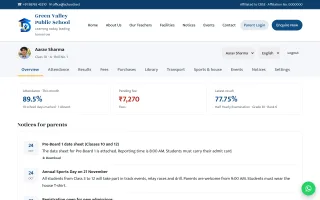
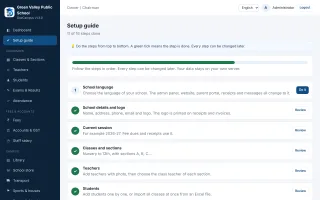
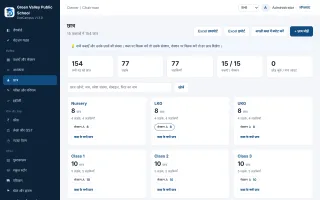
Website, parent portal, fees, results, library, store, transport, GST and salary — one secure system on the school’s own domain
| Category | News & Magazine |
| Version | 1.8.0 |
| Last update | 26 Oct 2026 |
| PHP | 7.4+ |
Prices exclude GST. 18% GST is added at checkout. Digital product: all sales are final, so please try the live demo first.
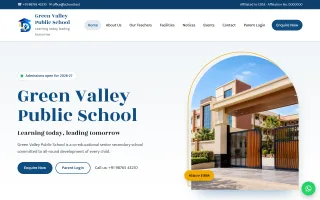
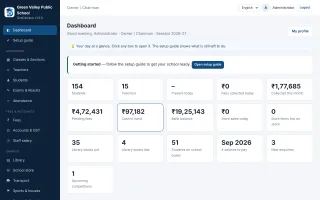
DeeCampus is a complete, self-hosted school website and management system for Indian schools. Install it once on the school's own hosting and domain: the school gets a public website, a staff panel for every department, and a private parent portal. One-time price, no monthly fee, and the school's data never leaves the school's server.
The owner decides who can do what. The principal, teachers, accountant, office, librarian, store keeper, PT teacher and transport in-charge each get sensible default access, and the owner can tick or untick any permission for any person.
Everything is connected: a uniform bought at the school store, a library late fine or the transport fee lands in the student's fee account, the parent sees it in the portal and can pay online, the receipt is posted to the day book automatically, and GST goes to the GST report. Invoices, receipts and payslips are proper A4 PDFs with the school logo.
The school sets DeeCampus up by itself with the built-in Setup guide. The admin panel is in English with a built-in Hindi translation, and any language in the world can be added; each staff member and parent chooses their own. Plain PHP and MySQL, runs on ordinary cPanel hosting, updates with one click without touching the school's data.
Private and CBSE / state-board schools from Nursery to Class 12 that want their own website, parent portal and office software on their own hosting, without a monthly fee.
Website: https://deecampus.store/ · Staff login: https://deecampus.store/admin/ (admin@demo.test / demo1234) · Parent portal: https://deecampus.store/parent/ (mobile 9812346671 / demo1234).
One-time licence for one school website (one domain). Lifetime updates and one year of support. The school sets up and enters its own data with the built-in Setup guide; setup help from our team is available separately at ₹5,000 per day.
No. One licence works on one school website (one domain). Each school needs its own licence.
Only in the school's own database on the school's own hosting. For the licence check DeeCampus sends only the licence key, website address and version to bestnewstheme.com; no student, parent, result or fee data is ever sent.
The website, parent portal, results, attendance and fees keep working normally. Only one-click updates and support need a valid licence. Updates are lifetime; support is one year and can be renewed.
No. Results are not searchable on the public website. Parents see results only after logging in, and only for their own children.
The school creates logins for a whole class in one click and prints login slips. Parents use the mobile number registered with the school and must set their own password on first login. The school can reset or disable any login.
Yes, if the school connects its own Razorpay account in Site Settings. The money goes straight to the school's bank account and the receipt appears in the parent portal. The store or the licence has no part in these payments.
No. A teacher sees only the classes where they are class teacher or subject teacher, and has no access to fees, parent logins or settings. Only the class teacher marks attendance. By default fees are handled by the accountant (the principal can view them); the owner can change any person's access.
No. Updates never touch config.php, uploads or storage, and database changes only add what is new. The update screen still asks you to download a database backup first, and every replaced file is backed up automatically.
No. Any cPanel hosting with PHP 7.2 or newer and MySQL works. HTTPS is recommended and is required for online fee payment.
Yes. Disconnect the licence in Admin → Licence & Updates (or in your store account), then activate it on the new domain.
Yes. The school chooses English or Hindi once, and the admin panel, website, parent portal, receipts, report cards, messages and Excel files all change to it. Any other language (Marathi, Gujarati, Tamil, Urdu, Arabic and more) can be added and translated in Admin → Languages; each teacher and parent chooses their own.
One year of help with installation and use through store support tickets. Support can be renewed.
₹49,999 one time for one school. There is no monthly or yearly fee; updates are lifetime.
The school does. The built-in Setup guide walks you through every step (school details, classes, teachers, students from Excel, parent logins, fees, staff logins, GST) with live progress. If you want our team to help set up or enter your data, setup help is available separately at ₹5,000 per day.
Admin → Students → Promote to next class. Choose a class and the new class, mark any child as same class again or left school, and press Promote (it can be undone). The child stays the same record, so the parent login and password, fees and dues, old results and attendance stay with the child, and old report cards and receipts still show the old class. The new class's subjects and teachers apply automatically.
Yes. Download the sample Excel file, fill one row per student (all classes in one file is fine), upload it, check the preview and press Import. The same admission number updates that student instead of adding them twice, and Export Excel gives the same columns back. Marks can also be filled in an Excel sheet and uploaded.
The owner (Super Admin). Every role starts with sensible access, for example the librarian sees only the library and the accountant sees fees, accounts and salary. The owner can tick or untick any permission for any person, including the principal.
Yes. Add your GSTIN and state once. School fees stay exempt; GST is charged only on taxable store items, with CGST + SGST / UTGST or IGST, HSN codes, tax invoices and a GST report for GSTR-1 / GSTR-3B. If the school is not registered, no GST is charged.
Yes, through the school's own WhatsApp Cloud API number or any WhatsApp gateway with a URL, and by email through the school's own SMTP. Receipts, store invoices, library reminders, absent alerts, results and events can be sent; parents can switch messages off.
Yes. Switch off unused modules in Settings → Modules & system; the data is kept and the menu stays clean.
1.8.0 — attendance in every period, time-table made by itself, special duty, students on buses
L leave) on one screen — periods across the top with time, subject and teacher. "All P" and "Same as before"
fill a period in one click. Only the ticked periods are saved, so periods can be marked one by one during the day
or filled later from the paper register (any of the last 7 days).
but present later = Late. The monthly register, parent portal, reports and absent messages to parents keep
working as before.
page lists the days of the last week still to fill. Admins see which classes have not finished today.
teacher teaches which subject in which class). Periods are shared equally between the subjects, the class
teacher takes the first period and no teacher is put in two classes at the same time. Free-period work is filled
in too.
or in Classes & Sections), the empty and teacher-less periods are filled by themselves. "Fill empty periods" and
"Make the whole time-table again" buttons are on the Class time-table page. Any period can still be changed by
hand.
work). The teacher's classes in that time go to free teachers by themselves — preferring a teacher who already
teaches that class. The duty page lists every class with who takes it, and any one can be changed. Removing a duty
removes the substitutes given for it.
whether each child comes to school by bus, goes home by bus or both, take a child off the bus, see how many come
in the morning and go in the afternoon, a warning when there are more students than seats, and print the list
for the driver. The student page and the parent portal show it.
1.7.0 — simpler Classes, Teachers, Students and Exams
with its class teacher and every student (roll, name, father's name, mobile). "Edit class" is still there for
sections, class teacher, subjects and subject teachers.
week, the whole week's periods and documents. "Edit teacher file" and "Set periods" are buttons on it.
admission date, promotions (when and from which class), result in the last class and the latest exam this year.
Search by name, admission no., mobile or father's name is next to it.
dates and subjects; filter by class and session. Clicking an exam shows its date sheet (date, day, subject,
maximum and pass marks, done / today / coming up) and, after the exam, the result: who passed, who failed, marks,
grades and ranks. Edit exam, marks, report cards and publish are buttons on the same page.
1.6.0 — teacher-wise time-table and work in free periods
subjects given in the teacher's file; a class that already has another teacher at that time cannot be chosen.
Saving updates the class time-tables, Who teaches what and the teacher's own login by itself.
class, office work, library / reading, rest or other work — with a note (for example "Class 3 - A Hindi").
"Fill free periods" sets them by itself: checking the class just taught, else preparing the next class, else
office work. The teacher sees this work in My time-table and on the dashboard, and admins on the board of where
every teacher is. A teacher in a free period can still be given a substitute class.
and choosing a subject does not fill in its teacher when that teacher is busy then.
1.5.0 — teacher file, master backup, free WhatsApp, classes and teachers as blocks
joining date and interview notes with scanned documents (marksheets, degrees, B.Ed., CTET, ID proof, interview
papers; PDF / JPG / PNG, kept private, only staff with access to Teachers can open them); class teacher of; and
the subjects the teacher teaches in each class and section. What is set here goes everywhere by itself: Classes &
Sections, the time-table, Who teaches what and the teacher's own login. A subject given here is also added to that
class's subjects.
teacher and every subject of a class that has no teacher yet.
attendance, fees, accounts, settings), every photo and document, config and the website files. One click makes it
and downloads it to the phone or computer. Big JPG / PNG photos and scans are made lighter inside the backup.
before every update. Old daily backups are deleted after the number of days you choose.
A safety backup is made first; type RESTORE to confirm.
photos and scans.
the store was last asked and why no update came (licence not active, or no higher version on the store). A copy
that was not downloaded from the store is pointed out, because it can never receive updates.
still empty. Clicking a block opens a window with the class name, sections with class teacher, and the subjects
of the class with the teacher of each subject in each section; one Save saves everything. Changing a subject's
teacher also moves its periods in the time-table (unless the new teacher is busy then). New classes can copy the
subjects of another class.
or Off. In free mode every message (absent alert, result, receipt, invoice, library, notice, event) waits in the
new "WhatsApp to send" list: Send opens WhatsApp with the parent's number and the message ready, Skip leaves it.
Teachers see only the children of their own classes. Absent messages also show on the attendance page, and the
WhatsApp button on receipts and invoices uses the same list. Schools already using the API keep it.
1.4.0 — time-table, teacher duties and substitute teachers
builds them from the start time, number of periods, minutes per period and the lunch break.
subject fills in its teacher. A teacher cannot be put in two classes at the same time: the clash is shown and
nothing is saved. "Copy to every working day" for classes with the same time-table every day.
Subjects without a teacher are shown in red.
teacher's whole week.
remove a subject. A new teacher is taken straight to this step after saving.
one or more dates, for the whole day or between two times, with place and note.
the Today page, with the list of teachers who are free in that period. "Give class" makes a free teacher the
substitute for that period.
Click a period to see who is free in it.
duties, the whole week and the students of each class. Today's periods and duties also show on the teacher's
dashboard.
switch in Settings → Modules & system. Setup guide has a new step for subjects and time-table.
1.3.0 — one school language and easier screens
admin panel, website, parent portal, receipts, invoices, payslips, report cards, WhatsApp / email
messages, Excel column names and month / day names together. English and Hindi are built in; any other
language can be added and translated in Admin → Languages. Each staff member and parent can still choose
their own language.
when something the page needs is missing (for example fees without fee heads). Can be switched off in
Settings → Modules & system.